オフラインファイル機能を使用する (Windows)
オフラインファイル機能を使えば、パソコンがネットワークにつながっていないときでも、ネットワークにつながっている状態であるかのように本製品内のファイルにアクセスできます。再びネットワークにつながったときに更新されたファイルを同期して書き込みます。
オフラインファイル機能を使用するには、以下の手順を行ってください。
1 設定画面で「ファイル共有」をクリックします。

A dark grey button with a white folder icon and the text 'ファイル共有' (File Sharing).
2 「共有フォルダー」の横にある設定アイコン(
 )をクリックします。

A horizontal bar showing '共有フォルダー' (Shared Folder) on the left and a gear icon followed by '2 フォルダー' (2 Folders) on the right.
3 オフラインファイル機能を使う共有フォルダーをクリックします。
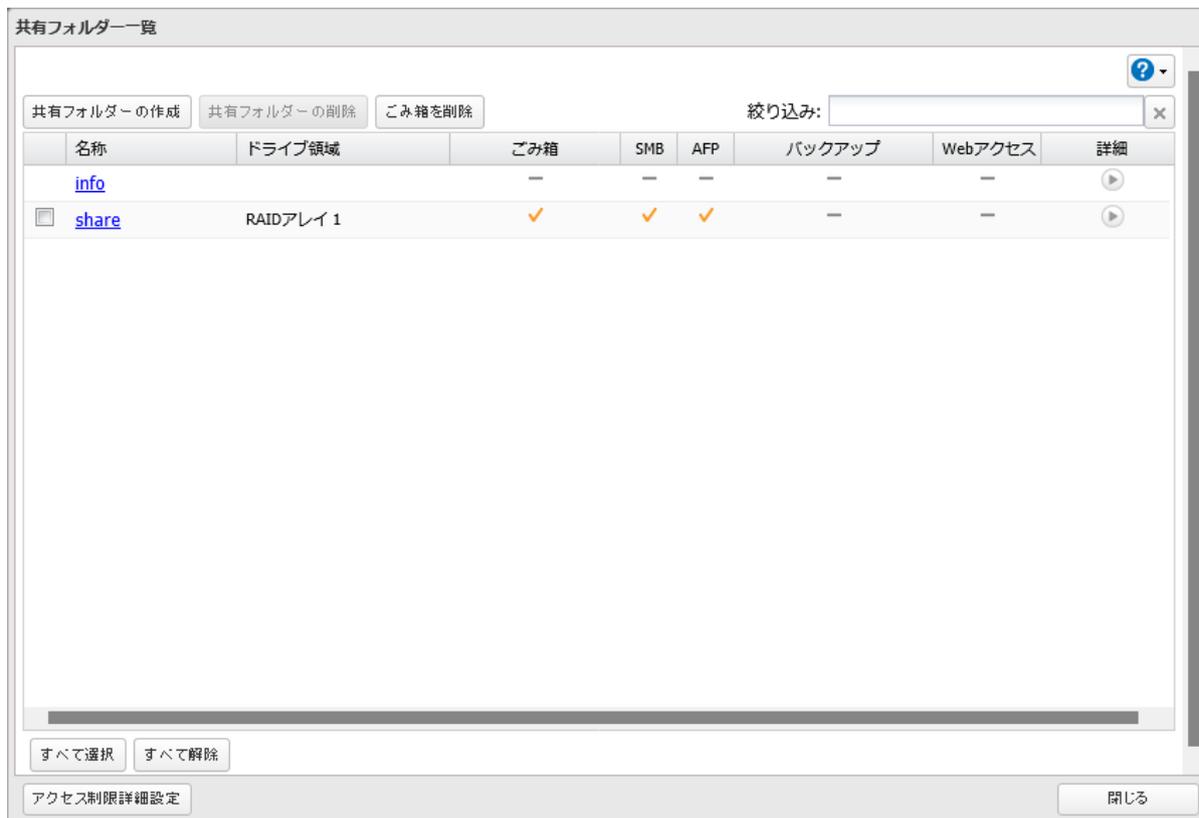
| 名称 | ドライブ領域 | ごみ箱 | SMB | AFP | バックアップ | Webアクセス | 詳細 | |
|---|---|---|---|---|---|---|---|---|
| info | — | — | — | — | — | ▶ | ||
| share | RAIDアレイ 1 | ✓ | ✓ | ✓ | — | — | ▶ |
A screenshot of the '共有フォルダー一覧' (Shared Folder List) window. It contains a table with columns for Name, Drive Area, Trash, SMB, AFP, Backup, Web Access, and Details. The 'share' folder is selected, showing it is on 'RAIDアレイ 1' and has checkmarks for Trash, SMB, and AFP. The 'info' folder has dashes for all options. Buttons at the top include '共有フォルダーの作成', '共有フォルダーの削除', and 'ごみ箱を削除'. Buttons at the bottom include 'すべて選択', 'すべて解除', 'アクセス制限詳細設定', and '開じる'.