画面上部に表示されている各アプリケーションへのリンクメニュー全体のことをアプリケーションメニューと呼びます。
リンクをクリックすると、各アプリケーションの画面に遷移します。
システム管理者は、ユーザーの画面に表示するアプリケーションメニューの初期値を設定できます。
ユーザーは、システム管理者が設定した初期値のメニューを、使いやすいように自分だけで使用するアプリケーションメニューにカスタマイズできます。カスタマイズした後は、ユーザーのアプリケーションメニューが優先して表示されます。
アプリケーションメニューの構成
アプリケーションメニューは、次のように構成されています。
システム管理者は、 1 のみ設定できます。
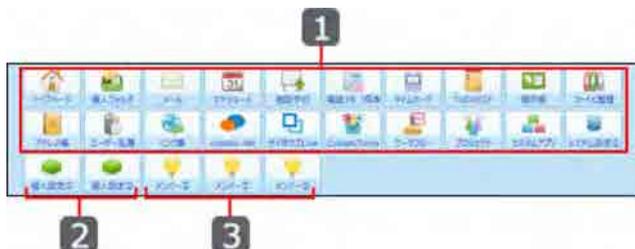
Screenshot of the application menu bar. A red box labeled '1' highlights the top row of icons. A red box labeled '2' highlights the bottom row of icons. A red box labeled '3' highlights the left side of the bottom row of icons.
| 番号 | 説明 | |
|---|---|---|
| 1 | システム管理者が設定するメニュー部分 | ユーザーは表示順を変更したり、削除したりできません。このメニューを表示するかどうかは、各ユーザーで設定できます。 |
| 2 | 各ユーザーが設定するメニュー部分 | 設定したメニューは、メニューをカスタマイズしたユーザー画面のみに表示されます。 |
| 3 | 自分がメンバーに含まれているアプリが表示される部分 | データベースIDが小さい順に表示されます。アプリの数が多い場合は、個人設定でメニューに表示するアプリを変更できます。 |
メニューを追加する
メニューを追加します。
1. 「システム設定」画面で、
Image: Application Menu icon
アプリケーションメニュー をクリックします。
Image: System Settings icon
システム設定画面にアクセスする初期設定では、有効にしているアプリケーションが自動的に設定されています。
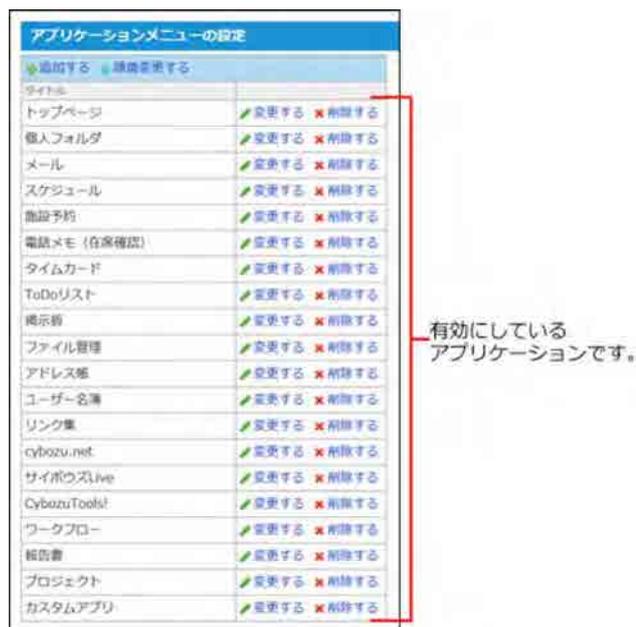
Screenshot of the 'Application Menu Settings' screen. It shows a list of applications with 'Change' and 'Remove' buttons. A red box highlights the list of applications. A red arrow points to the list with the text '有効にしているアプリケーションです。' (These are the applications you have enabled.)
2.
Image: Add icon
追加する をクリックします。