8 [共有フォルダーの作成]をクリックします。
Webアクセスで使用する共有フォルダーは、普段使用する共有フォルダーと別にすることをおすすめします。普段使う共有フォルダーと分けておくことで、公開したくないファイルを誤って公開することを防ぐことができます。
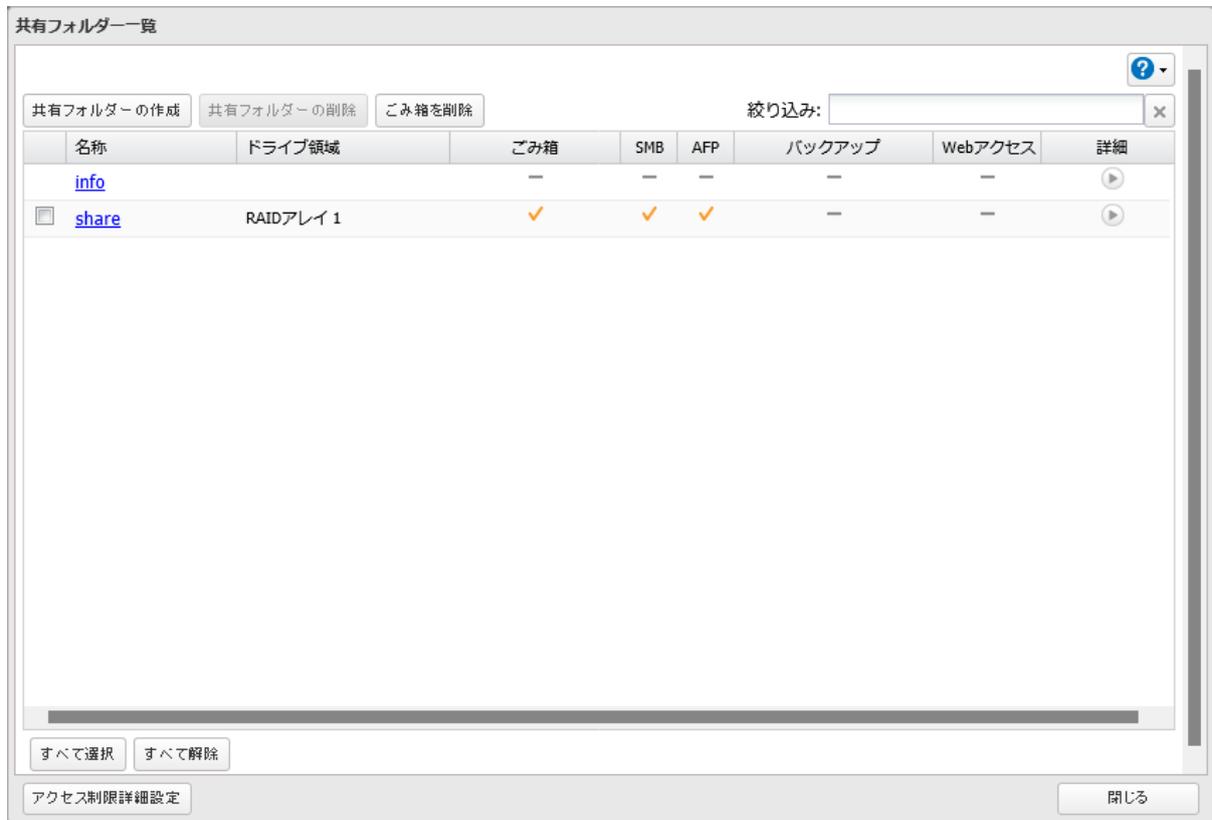
共有フォルダー一覧
共有フォルダーの作成 共有フォルダーの削除 ごみ箱を削除 絞り込み:
| 名称 | ドライブ領域 | ごみ箱 | SMB | AFP | バックアップ | Webアクセス | 詳細 | |
|---|---|---|---|---|---|---|---|---|
| info | — | — | — | — | — | ▶ | ||
| share | RAIDアレイ 1 | ✓ | ✓ | ✓ | — | — | ▶ |
すべて選択 すべて解除
アクセス制限詳細設定 閉じる
Screenshot of the '共有フォルダー一覧' (Shared Folder List) window. The window shows a table with columns for Name, Drive Area, Trash, SMB, AFP, Backup, Web Access, and Details. There are two rows: 'info' and 'share'. The 'share' row has a checkbox checked, and its 'Web Access' column has a checkmark. The '共有フォルダーの作成' (Create Shared Folder) button is highlighted.
9 「公開プロトコル」の「Webアクセス」にチェックマークを付けます。
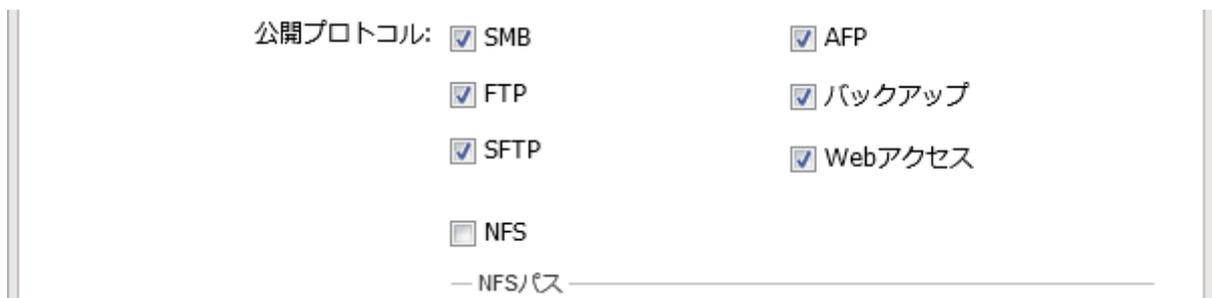
公開プロトコル:
SMB
AFP
FTP
バックアップ
SFTP
Webアクセス
NFS
— NFSパス —————
Screenshot of the '公開プロトコル' (Public Protocol) settings. It shows a list of protocols with checkboxes: SMB, AFP, FTP, バックアップ, SFTP, Webアクセス, and NFS. The first six are checked, and the last one is unchecked. Below the checkboxes is a text field labeled 'NFSパス'.