Image: Screenshot of the 'CSV file export' dialog box. It shows options for selecting items to export, changing their order, and selecting the file encoding (Shift JIS, UTF-8 without BOM, or UTF-8 with BOM). Annotations explain how to use the 'Add', 'Remove', and 'Reorder' buttons, and the 'Check first row for item names' checkbox.
CSVファイルへの書き出し (編集) - Step 1/2
書き出す項目と順序を選択してください。
※ (文) は複数回追加できます。
書き出す項目
項目一覧
順序を変更する項目を選択し、順序変更ボタンをクリックして並びを変更します
ファイルの1行目に項目名を書き出す場合はチェックボックスを選択します。
右側の項目選択欄で、書き出す項目を選択し、[←追加]をクリックします。削除する場合は、左側の項目欄で、削除する項目を選択し、[削除→]をクリックします。
CSVファイルの文字コードを、次の中から選択します。
・シフトJIS
・UTF-8 (BOM なし)
・UTF-8 (BOM あり)
5. 書き出す内容を確認し、 書き出す をクリックします。
6. Web ブラウザーのファイル保存機能を使って、ファイルを保存します。
会社情報を設定する
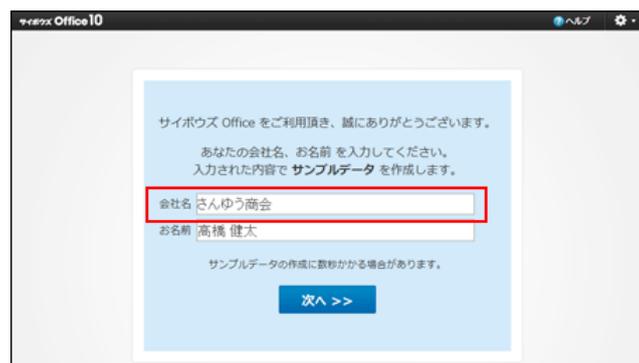
ログイン画面やヘッダーに表示する会社名や会社のロゴなどの会社情報を設定します。会社名は、インストール後に表示される初回アクセス画面でも設定できます。
1. システム設定画面で、
Image: System Settings icon
会社情報 をクリックします。2. 会社名、URL、メモを入力します。
URL欄に指定する値は、ログイン画面に表示される会社名のリンク先に設定できます。設定方法は、次のページを参照してください。
3. ファイルを選択し、ロゴを設定します。
ファイルを指定すると、製品の動作が遅くなる場合があります。
会社情報の画像に使用できるファイルは次のとおりです。
- • gif
- • png
- • jpeg(CMYK 形式を除く)
ファイルを指定しない場合は、 サイボウズ Office10 が表示されます。

● バージョン 8以前から最新のパッケージ版にバージョンアップする場合
- ▪ 最新版では、バージョン 8以前で使用していた会社よみ、E-mail、会社Tel、および会社Fax の項目は、「メモ」に統合されています。
| バージョン 8以前 | → | 最新バージョン |
|---|---|---|
| 会社名 | → | 会社名 |