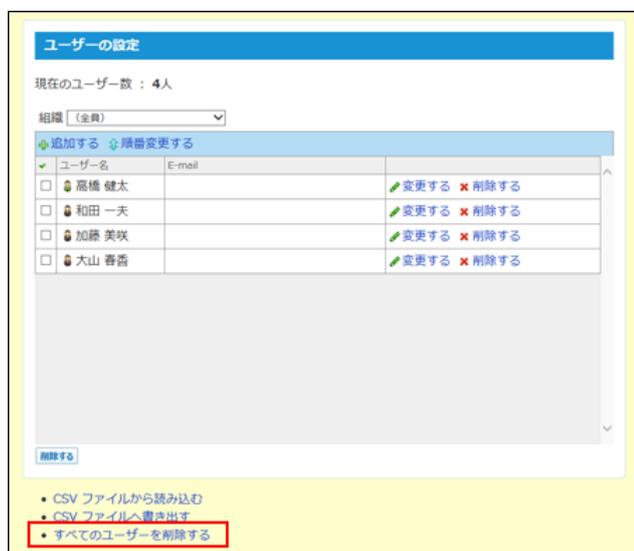
Screenshot of the 'User Settings' (ユーザーの設定) screen. It shows a list of four users: 高橋 健太, 和田 一夫, 加藤 美咲, and 大山 香苗. Each user has a 'Change' (変更する) and 'Delete' (削除する) link. Below the list, there are buttons for 'Read from CSV file' (CSV ファイルから読み込む), 'Write to CSV file' (CSV ファイルへ書き出す), and 'Delete all users' (すべてのユーザーを削除する). The 'Delete all users' button is highlighted with a red rectangle.
3. 確認画面で、 すべて削除する をクリックします。
所属組織を変更する
ユーザーが所属する組織を変更します。
1. システム設定画面で、
 ユーザー
をクリックします。
ユーザー
をクリックします。
2. 所属組織を変更するユーザーの
 変更する
をクリックします。
変更する
をクリックします。
3. 所属組織を変更し、 変更する をクリックします。

Screenshot of the 'Change Organization' (所属組織を変更する) screen. It shows three columns: '所属する組織' (Current Organization), '所属しない組織' (Organization not belonging), and '変更する' (Change). The 'Current Organization' column contains '総務部' and '部長'. The 'Change' column contains '所属する' (Belong to) and '所属しない' (Not belong to) buttons. The 'Organization not belonging' column contains '営業部'.
サイボウズ製品とユーザー情報を連携する
サイボウズ Officeと他のサイボウズ製品のユーザー情報を連携させる方法は次の2とおりです。
● 連携認証
サイボウズ Officeで登録したユーザー情報を連携先の製品で使用できます。
サイボウズ Officeにログインすれば、連携するすべてのサイボウズ製品にログインした状態になります。(シングルサインオン)
● ユーザー情報連携
サイボウズ Officeで登録したユーザー情報を連携先の製品で使用できます。
連携するサイボウズ製品ごとに、ログインする必要があります。
サイボウズ Officeと他のサイボウズ製品を連携すると、連携先の製品で、サイボウズ Officeで登録した次の情報を使用できます。
- ● ユーザー情報
- ● 組織情報
- ● ログイン方法
ユーザー情報連携を連携すると、連携先の製品はサイボウズ Officeのユーザー情報を読み込むため、連携先の製品で上記の情報を設定する手間を省けます。サイボウズOfficeと連携できる製品は、次のとおりです。
- ● メールワイズ 5